
Android Recording Setup Guide
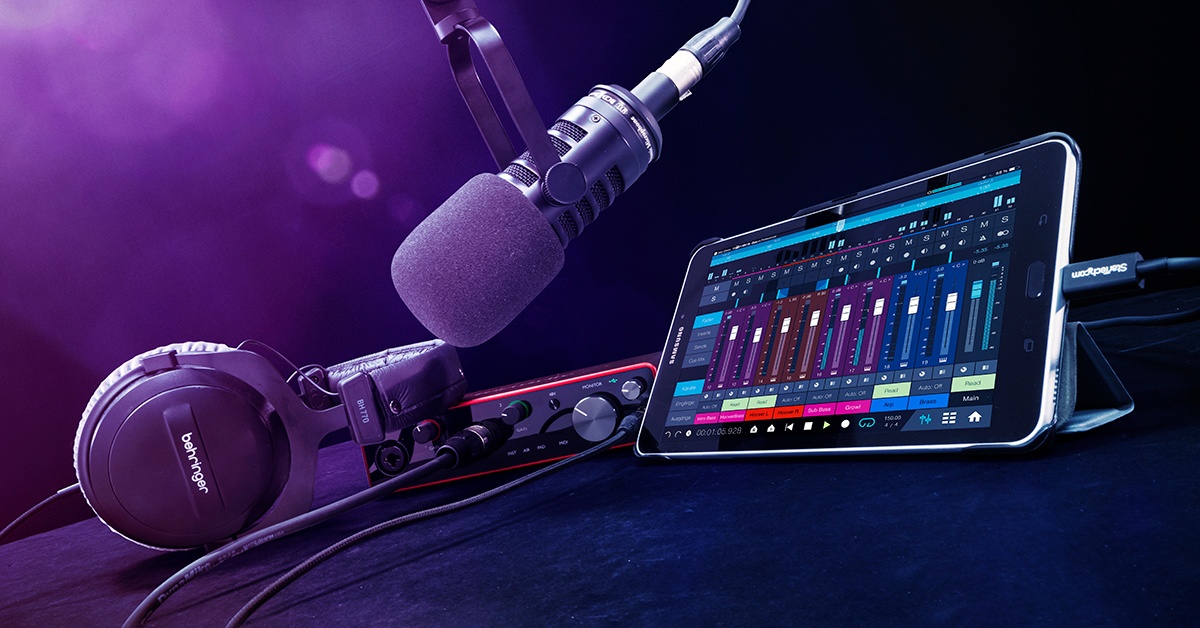
In this guide, we will show you how to set up, connect, and record audio and MIDI using your Android device. Follow the sections below to get started.
- Android sound settings
- Android Bluetooth setup
- Set up and record audio and MIDI
- How to find audio files on Android
Android sound settings
Unlike its Mac and PC counterparts, the global Android OS sound settings are straightforward. Depending on which device you have will depend on what settings are available. For example, one manufacturer’s tablet may only have volume controls, whereas another will additionally have EQ and effects controls. Once you begin digging a little deeper and start using recording apps, USB mics, or audio interfaces, you’ll find that you’ll rely more and more on the app and external hardware rather than the Android device itself.
Android Bluetooth setup
TIP: When Bluetooth isn’t being used, turn it off to save some battery. Also, remember that Bluetooth is automatically disabled if you’re in Airplane Mode.
Bluetooth setup on Android is a breeze. It’s just a matter of turning it on, then pairing the devices together. Depending on what you’re pairing, you may be prompted to enter a password. Once it’s paired, your Android device will remember the Bluetooth device and can be reconnected at any time without needing to go through the setup process again.
- Power on the device you’re connecting to.
- Depending on what you’re pairing with, you may have to enable its Bluetooth function along with your Android. Refer to the device’s user manual for more information.
- On your Android device, swipe down from the top of the screen and tap the Bluetooth icon to enable Bluetooth.
- Press and hold the Bluetooth icon, then press Pair new device.
- Wait a few moments for your Android to scan all nearby Bluetooth devices.
- Press the name of your device once it appears on the Available list to begin the pairing process.
- If your device requires a password, you’ll be prompted to enter it now. Double-check the owner’s manual for the password, but more often than not, it will be 0000 or 1234.
Bluetooth device not showing up?
If your Bluetooth device isn’t showing up in the list of available devices on your Android, turn Bluetooth off then back on for both. If that doesn’t work, power cycle both devices.
Connect a Bluetooth Device
Set up and record audio and MIDI
Setting up and recording audio and MIDI is straightforward on the Android OS. All you need to do is connect the hardware, launch the app, then start recording!
- Connect your external device to the USB-A end of an OTG adapter.
- Some external audio devices use a TRRS connector. If this is the case, connect it to your headphone jack.
- Connect the other end of the OTG (micro USB, USB-C) adapter to your Android.
- Launch the app. Some apps have additional audio preferences that you may need to update beforehand, so be sure to check out the app’s audio settings section to learn more.
- If you’re connecting the MIDI controller, you’re all set.
If you’re using a USB mic, audio interface, or a microphone, please continue.
- Turn both the input and output levels all the way down.
- Play some music or a video and slowly raise the output level until it’s at a comfortable listening level.
- Begin playing as loud as you will be recording at and slowly raise the input level to a point where it’s not clipping.
- If your external device isn’t working, check that everything is fully connected. Once you’ve confirmed that and it still isn’t working, open the Settings app and press Connected devices. Lastly, make sure that you’re running a compatible version of the Android OS.
My MIDI controller isn’t working!
If your MIDI controller isn’t working on your Android device, make sure that it’s fully connected. If it’s still not responding, you may need to update the Default USB configuration settings via the Developer Options.
- Launch Settings (cog icon), scroll to System, then press About phone.
- Scroll down to find Build number.
- Continuously press Build number (five times) until you receive a message stating you’re now a developer.
- Back out to System, press Advanced, then scroll down and press Default USB configuration.
- In the window that appears, press MIDI.
- Back out to your home screen. Your Android device will now be ready to connect via MIDI.
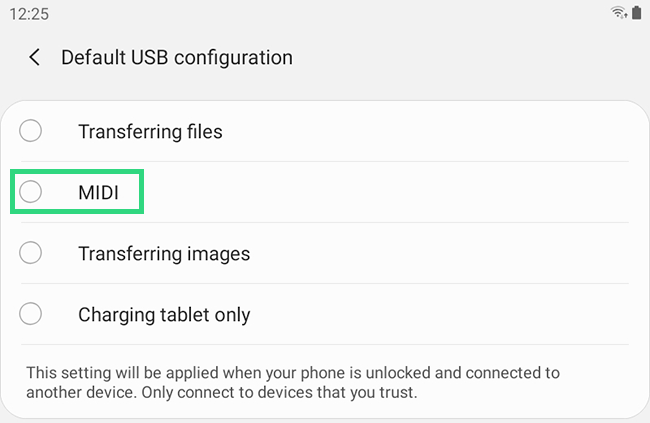
Update the USB configuration settings
Android version compatibility
The Android OS is updated periodically, and with these updates, new features are added, and bug fixes that may have been present in the current build are commonly addressed. With every major update, however, comes the risk of incompatibility. For example, if you have an Android device from three years ago, it may not be eligible for the upgrade since it’d be considered “obsolete.” On the software side, if you update your Android device to the latest version and you use a recording app that is no longer supported, the app may not operate as expected.
How to check the Android version number
If you notice sluggish performance or aren’t sure if you’re on the latest version, you can quickly check by going into your system settings. While you’ll typically be notified when updates are available, it’s always good to double-check.
- Launch Settings (cog icon), then scroll to System.
- Press About phone. Scroll down until you see the Android version.
- It’s important to note that updates are rolled out periodically, so some devices may receive updates sooner than others. For more information, check out Google’s support page.
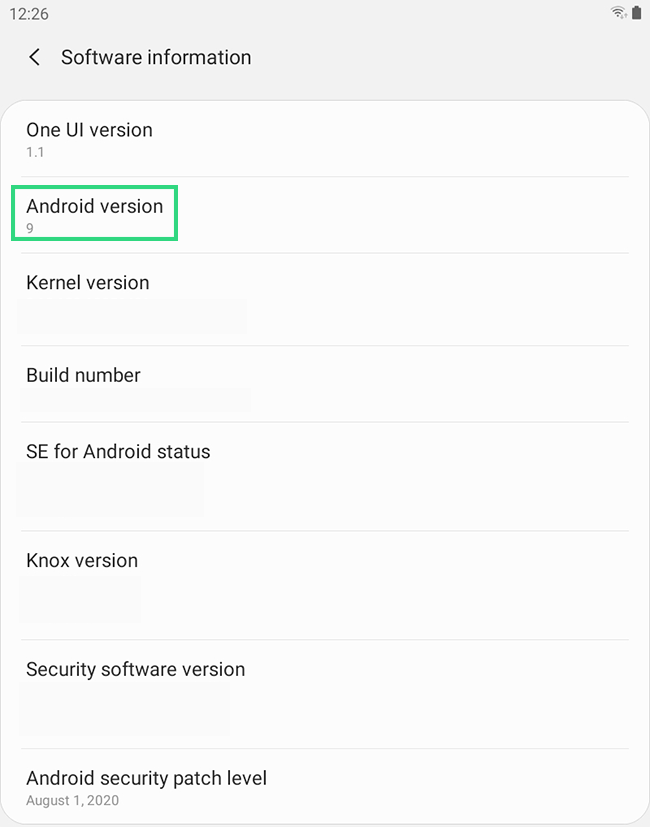
Viewing the Android version number
How to find audio files on Android
Unless specified, recorded (and downloaded) audio is stored in your phone’s internal storage. You can access the internal storage in two ways: the Files app that came pre-installed with your Android device or through the Storage option in the device’s Settings app. While the Files app is useful for basic file management, the Storage option is much more robust in that you can view all folders from your phone, as well as your SD card. To get there, open Settings, then press Storage. After that, press File to view all files stored on your phone.
Transferring audio files
You can transfer files from your Android to another storage medium, such as an SD card or your computer. This is especially useful for two reasons: backing up and portability. Before you can transfer the files, you’ll need to update the USB configuration settings within the Developer Options.
- Launch Settings (cog icon), scroll to System, then press About phone.
- Scroll down to find Build number.
- Continuously press Build number (five times) until you receive a message showing that you’re now a developer.
- Back out to System, press Advanced, then scroll down to Default USB configuration.
- Press that, then in the window that appears, press File Transfer.
- Back out to the home screen and lastly connect the device to your computer. You can now transfer your audio files to and from the storage medium you’ll be working with.
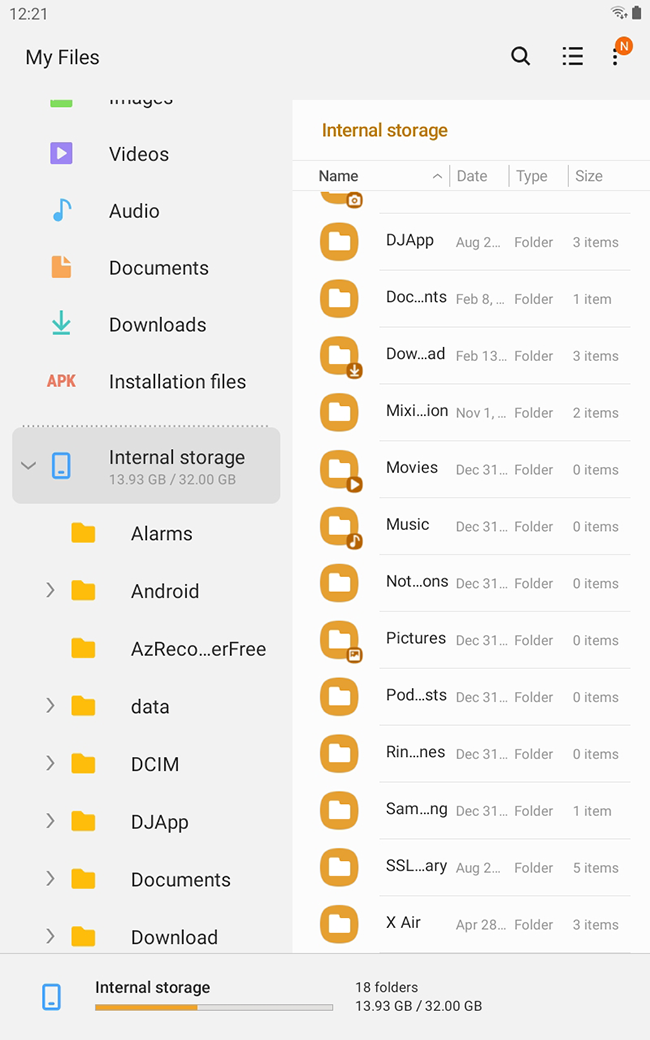
Android root folder directory
Additional Android and Google resources
- Manage audio recordings in your Web & App Activity
- Fix Bluetooth problems on Android
- Connect through Bluetooth on your Android device
- Android Help
- Transfer files between your computer & Android device
Android Accessibility Tools on Android (playlist)
Android Accessibility: What’s New With Sound Amplifier
When you need help, Sweetwater has the answers!
Our knowledge base contains over 28,000 expertly written tech articles that will give you answers and help you get the most out of your gear. Our pro musicians and gear experts update content daily to keep you informed and on your way. Best of all, it’s totally FREE, and it’s just another reason that you get more at Sweetwater.com.

